
Creating quality content is only one part of a successful SEO strategy. If search engines cannot properly crawl, index, and understand your website, your content may never reach its full ranking potential. This is where Technical SEO for WordPress becomes essential.
WordPress is one of the most SEO-friendly content management systems available, but it still requires proper technical optimization. Without the right setup, issues like slow page speed, broken links, duplicate content, poor mobile usability, and indexing errors can negatively impact your search rankings.
Whether you run a business website, an eCommerce store, or a personal blog, implementing Technical SEO for WordPress helps improve user experience, increase organic traffic, and achieve better visibility in Google Search.
In this complete guide, you’ll learn the most important technical optimization techniques that every WordPress website should follow in 2026.
What is Technical SEO for WordPress?
Technical SEO for WordPress refers to optimizing the technical foundation of your WordPress website so search engines can crawl, index, and rank your pages more efficiently.
Unlike On-Page SEO, which focuses on content, keywords, and internal linking, technical SEO improves the overall performance and accessibility of your website.
It includes optimization for:
- Website Speed
- Core Web Vitals
- XML Sitemap
- Robots.txt
- HTTPS Security
- Mobile Friendliness
- Canonical URLs
- Structured Data (Schema)
- Crawlability
- Indexability
- Internal Linking
A properly optimized website makes it easier for Google to understand your content and deliver a better experience to users.
Why Technical SEO for WordPress is Important
Many website owners believe that installing WordPress automatically makes their website SEO-friendly. While WordPress provides an excellent SEO foundation, it does not optimize everything by default.
A well-implemented Technical SEO for WordPress strategy offers several important benefits:
- Improves Google rankings
- Enhances website speed
- Increases organic traffic
- Reduces bounce rate
- Improves user experience
- Strengthens website security
- Boosts Core Web Vitals scores
- Helps search engines crawl pages more efficiently
- Accelerates indexing of new content
- Supports long-term SEO growth
Ignoring Technical SEO for WordPress can prevent even high-quality content from performing well in search results.Services
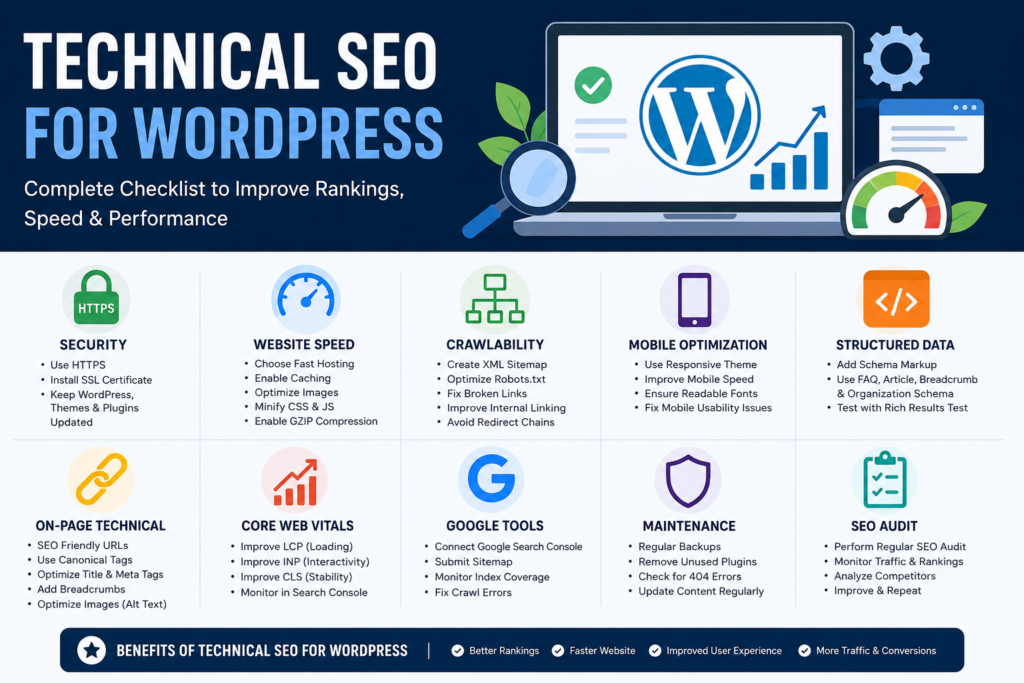
Technical SEO for WordPress Checklist
The following checklist covers the essential technical optimizations every WordPress website should implement.
1. Install a Reliable SEO Plugin
The first step in Technical SEO for WordPress is selecting a reliable SEO plugin.
Some of the most popular options include:
- Rank Math SEO
- Yoast SEO
- All in One SEO
- SEOPress
These plugins help manage several important SEO elements, including:
- XML Sitemaps
- Meta Titles
- Meta Descriptions
- Schema Markup
- Canonical URLs
- Robots Meta Tags
- Social Media Metadata
- Breadcrumb Navigation
Among these, Rank Math is a popular choice because it provides many advanced SEO features in its free version.
2. Secure Your Website with HTTPS
Website security is a confirmed Google ranking factor.
If your website is still using HTTP instead of HTTPS, upgrading should be a top priority.
Benefits of HTTPS include:
- Better website security
- Increased visitor trust
- Improved SEO performance
- Secure data transmission
- Removal of browser security warnings
Every Technical SEO for WordPress checklist should begin with a secure SSL certificate.
3. Improve Website Speed
Website speed directly affects user experience, conversions, and search engine rankings.
Google recommends loading pages as quickly as possible, ideally within three seconds.
Here are several ways to improve website speed.
Choose High-Performance Hosting
Fast hosting provides:
- Faster server response
- Better uptime
- Improved loading speed
- Enhanced website stability
Enable Page Caching
Caching reduces server load and helps pages load much faster.
Popular caching plugins include:
- LiteSpeed Cache
- WP Rocket
- W3 Total Cache
Optimize Images
Large image files significantly slow down websites.
For better performance:
- Convert images to WebP format.
- Compress images before uploading.
- Resize oversized images.
- Use lazy loading where appropriate.
Useful image optimization tools include:
- ShortPixel
- Imagify
- TinyPNG
Minify CSS and JavaScript
Removing unnecessary spaces and unused code decreases file size and improves page loading speed.
Enable GZIP Compression
GZIP compression reduces the amount of data transferred between the server and the user’s browser, helping pages load faster.
Improving speed is one of the highest-priority tasks in Technical SEO for WordPress because it affects both rankings and user satisfaction.
4. Optimize Core Web Vitals
Core Web Vitals are Google’s performance metrics used to measure user experience.
The three most important metrics are:
Largest Contentful Paint (LCP)
LCP measures how quickly the largest visible element loads.
Recommended Score: Less than 2.5 seconds.
Interaction to Next Paint (INP)
INP measures how quickly your website responds to user interactions.
Recommended Score: Under 200 milliseconds.
Cumulative Layout Shift (CLS)
CLS measures visual stability during page loading.
Recommended Score: Below 0.1.
Improving these metrics is an essential part of Technical SEO for WordPress because they directly influence user experience and search rankings.
5. Create an XML Sitemap
An XML sitemap helps search engines discover and crawl your website more efficiently.
A complete sitemap should include:
- Blog Posts
- Pages
- Categories
- Important Tags (if applicable)
- Images
Most SEO plugins automatically generate XML sitemaps.
After creating your sitemap:
- Submit it to Google Search Console.
- Submit it to Bing Webmaster Tools.
This helps search engines index your content more quickly and efficiently.
6. Optimize Your Robots.txt File
The robots.txt file tells search engines which parts of your website they should or should not crawl.
A properly configured robots.txt file helps search engines focus on important pages while avoiding unnecessary directories like the WordPress admin area.
Review your robots.txt file regularly to ensure it supports your Technical SEO for WordPress strategy instead of accidentally blocking important pages from indexing.
7. Use an SEO-Friendly URL Structure
One of the most important elements of Technical SEO for WordPress is having clean and descriptive URLs. Search engines and users should immediately understand what a page is about just by looking at its URL.
Best Practices for WordPress URLs
- Keep URLs short and readable.
- Include your primary keyword naturally.
- Avoid unnecessary numbers or special characters.
- Use hyphens (-) instead of underscores (_).
- Remove stop words where possible.
Example
❌ yourwebsite.com/?p=123
❌ yourwebsite.com/post-2026-final-version-new
✅ yourwebsite.com/technical-seo-for-wordpress
To change your URL structure in WordPress:
Settings → Permalinks → Post Name
Using the “Post Name” structure creates SEO-friendly URLs that improve both user experience and search engine understanding. A clean permalink structure is a fundamental part of Technical SEO for WordPress.
8. Improve Crawlability and Indexability
Google cannot rank pages it cannot crawl or index. That is why crawlability and indexability are essential components of Technical SEO for WordPress.
Improve Crawlability by:
- Creating a proper XML Sitemap.
- Maintaining a clean internal linking structure.
- Fixing broken links.
- Removing unnecessary redirect chains.
- Keeping navigation simple.
Improve Indexability by:
- Avoiding accidental “Noindex” tags on important pages.
- Submitting new URLs through Google Search Console.
- Using canonical tags correctly.
- Removing duplicate pages.
Regularly check the Pages section inside Google Search Console to identify indexing issues.
9. Fix Broken Links
Broken links create a poor user experience and waste Google’s crawl budget.
Common reasons include:
- Deleted blog posts
- Changed URLs
- Incorrect internal links
- External pages that no longer exist
How to Find Broken Links
Use tools such as:
- Google Search Console
- Screaming Frog SEO Spider
- Broken Link Checker Plugin
Whenever possible:
- Update the broken URL.
- Redirect deleted pages.
- Remove outdated links.
Maintaining healthy links is another important step in Technical SEO for WordPress.
10. Optimize Internal Linking
Internal links help search engines understand your website structure while distributing SEO authority across pages.
Internal Linking Best Practices
- Link to relevant articles naturally.
- Use descriptive anchor text.
- Avoid excessive linking.
- Update older posts with links to newer content.
- Ensure every important page receives internal links.
Example:
If you’re writing about website speed, link to related articles covering:
- Core Web Vitals
- Image Optimization
- WordPress Caching
- SEO Plugins
A strong internal linking strategy improves user engagement and strengthens Technical SEO for WordPress.
11. Use Canonical URLs
Duplicate content can confuse search engines.
Canonical tags tell Google which version of a page should be treated as the original.
Examples include:
- HTTP vs HTTPS
- WWW vs Non-WWW
- URLs with tracking parameters
- Duplicate category pages
Most SEO plugins automatically generate canonical tags.
Always verify canonical URLs after redesigning or migrating your website.
Using canonical URLs correctly is a key practice in Technical SEO for WordPress.
12. Optimize Your Website for Mobile Devices
Google uses Mobile-First Indexing, meaning it primarily evaluates the mobile version of your website.
A mobile-friendly website improves both rankings and user experience.
Mobile Optimization Checklist
- Responsive design
- Readable font sizes
- Clickable buttons
- Fast loading speed
- Proper spacing
- No horizontal scrolling
- Mobile-friendly navigation
Test your website on multiple devices to ensure a consistent experience.
Mobile optimization remains one of the highest priorities in Technical SEO for WordPress.
13. Add Schema Markup
Schema Markup helps search engines understand your content better.
It can also generate rich results in Google Search.
Popular schema types include:
- Article Schema
- FAQ Schema
- Organization Schema
- Local Business Schema
- Product Schema
- Review Schema
- Breadcrumb Schema
Benefits include:
- Better click-through rate (CTR)
- Rich snippets
- Improved visibility
- Enhanced search appearance
Rank Math and Yoast SEO make adding schema much easier.
Implementing structured data is a powerful step in Technical SEO for WordPress.
14. Enable Breadcrumb Navigation
Breadcrumbs improve navigation by showing users their current location on your website.
Example:
Home → Blog → SEO → Technical SEO for WordPress
Benefits include:
- Better user experience
- Improved internal linking
- Enhanced crawlability
- Breadcrumb rich snippets in Google
Most SEO plugins can automatically enable breadcrumb navigation.
Breadcrumbs are a small but valuable addition to Technical SEO for WordPress.
15. Optimize Images for SEO
Images improve engagement but can also slow down your website if they are not optimized.
Image SEO Checklist
- Compress images before uploading.
- Use WebP format whenever possible.
- Write descriptive file names.
- Add keyword-rich alt text naturally.
- Enable lazy loading.
- Resize large images.
Example:
❌ IMG001.jpg
✅ technical-seo-for-wordpress-checklist.webp
Image optimization enhances loading speed and supports Technical SEO for WordPress by improving user experience and Core Web Vitals.
Manage Redirects Properly
Redirects are essential when you change URLs, delete pages, or migrate your website. Proper redirects ensure that visitors and search engines are sent to the correct page without losing SEO value.
Types of Redirects
301 Redirect (Permanent)
Use this when a page has permanently moved. It passes most of the SEO value to the new URL.
302 Redirect (Temporary)
Use this only for temporary changes, such as seasonal landing pages or short-term maintenance.
Redirect Best Practices
- Use 301 redirects for permanently moved pages.
- Avoid redirect chains (Page A → Page B → Page C).
- Fix redirect loops immediately.
- Regularly audit redirects after website updates.
Plugins like Redirection or Rank Math SEO make redirect management simple.
Prevent Duplicate Content
Duplicate content can confuse search engines and dilute your ranking potential. While Google doesn’t usually penalize duplicate content directly, it may struggle to determine which version should rank.
Common Causes
- HTTP and HTTPS versions
- WWW and non-WWW versions
- Category archives
- Tag archives
- Printer-friendly pages
- URL parameters
How to Prevent It
- Use canonical tags.
- Redirect duplicate URLs.
- Keep only one preferred website version.
- Avoid publishing the same content on multiple pages.
- Configure archive pages correctly.
Maintaining unique content improves overall website quality and indexing.
Strengthen Website Security
A secure website builds trust with visitors and protects your SEO efforts.
Security Checklist
- Install an SSL certificate.
- Use strong passwords.
- Enable two-factor authentication.
- Keep WordPress, themes, and plugins updated.
- Remove unused plugins.
- Schedule automatic backups.
- Install a trusted security plugin.
Popular security plugins include:
- Wordfence Security
- Sucuri Security
- Solid Security (formerly iThemes Security)
A secure website reduces downtime and protects your search visibility.
Optimize Crawl Budget
Search engines allocate a limited crawl budget to every website. If Google spends time crawling unnecessary pages, your important pages may be discovered more slowly.
Improve Crawl Efficiency
- Remove unnecessary redirects.
- Fix broken links.
- Block low-value pages in robots.txt where appropriate.
- Eliminate duplicate URLs.
- Keep your XML sitemap updated.
- Maintain a logical internal linking structure.
Large websites benefit the most from efficient crawl budget management, but it’s a good practice for websites of all sizes
Monitor Index Coverage in Google Search Console
Google Search Console provides valuable insights into how Google views your website.
Check it regularly for:
- Indexed pages
- Excluded pages
- Crawl errors
- Soft 404 errors
- Server issues
- Mobile usability problems
Reviewing these reports helps identify issues before they affect your rankings.
Integrate Google Analytics
Google Analytics helps you understand visitor behavior and measure the effectiveness of your SEO efforts.
Monitor metrics such as:
- Organic traffic
- Bounce rate
- Average engagement time
- Landing pages
- Conversion rate
- User acquisition
- Device performance
These insights help you improve both user experience and website performance.
Monitor Core Web Vitals Regularly
Website performance changes over time as new content, plugins, and updates are added.
Review Core Web Vitals periodically to ensure your site continues to perform well.
Important metrics include:
- Largest Contentful Paint (LCP)
- Interaction to Next Paint (INP)
- Cumulative Layout Shift (CLS)
You can monitor these using:
- Google PageSpeed Insights
- Google Search Console
- Lighthouse
Regular monitoring helps identify performance issues before they impact visitors.
Keep WordPress Updated
Running outdated software can create security vulnerabilities and performance issues.
Always keep updated:
- WordPress Core
- Themes
- Plugins
- PHP Version
Before major updates:
- Take a full backup.
- Test updates on a staging site if possible.
- Remove inactive themes and plugins.
Keeping everything updated ensures better compatibility and long-term stability.
Perform Regular Technical SEO Audits
A website is never completely “finished.” Regular audits help identify problems before they affect rankings.
A monthly SEO audit should include:
- Broken link checks
- Redirect review
- Sitemap validation
- Robots.txt inspection
- Page speed analysis
- Mobile usability testing
- Structured data validation
- Internal linking review
- Security scan
- Crawl error analysis
Consistent audits help maintain a healthy website and improve long-term organic performance.
Pro Tips for Better Technical Performance
Follow these additional best practices:
- Use lightweight themes.
- Limit unnecessary plugins.
- Compress CSS and JavaScript files.
- Enable browser caching.
- Optimize your database regularly.
- Use a Content Delivery Network (CDN).
- Remove spam comments.
- Optimize large media files before uploading.
- Review website performance after installing new plugins.
- Monitor server uptime regularly.
These small improvements collectively make a significant difference in website performance and user experience.
Completing this checklist regularly helps maintain a healthy, search-engine-friendly website.https://developer.chrome.com/docs/lighthouse
Frequently Asked Questions (FAQ)
1. Why is technical SEO important for WordPress websites?
Technical SEO ensures that search engines can crawl, index, and understand your website efficiently. It also improves speed, security, mobile usability, and overall user experience.
2. How often should I perform a technical SEO audit?
A complete audit every month is recommended. For larger websites or eCommerce stores, reviewing technical performance every two weeks can be beneficial.
3. Which SEO plugin is best for WordPress?
Popular options include Rank Math, Yoast SEO, All in One SEO, and SEOPress. The right choice depends on your requirements, but all provide essential optimization features.
4. Does website speed affect Google rankings?
Yes. Website speed is an important ranking factor because it directly impacts user experience and Core Web Vitals.
5. What are Core Web Vitals?
Core Web Vitals are performance metrics that measure loading speed, responsiveness, and visual stability. They help Google evaluate the quality of a user’s page experience.
6. Is an XML sitemap necessary?
Yes. An XML sitemap helps search engines discover and index your pages more efficiently, especially when you regularly publish new content.
7. How can I improve website performance?
Some effective methods include:
Optimizing your database
Using quality hosting
Compressing images
Enabling caching
Minifying CSS and JavaScript
Removing unnecessary plugins
Using a CDN